
If your looking to create a new user account on a new system (highly recommended for users installing OpenSSH and not disabling password based logins) here is how you can do that the easy way via the graphical user interface. These directions were written up for Linux Mint 22, but will likely be applicable to future releases of Linux Mint, and should be pretty similar under Ubuntu 24.04 and similar releases using the GNOME and/or Cinnamon desktop environment as well (Note: Assuming the distribution supports the 'run as root' option).
Directions to add a new user account and set the new user account as an administrative user
1. Getting to the search box
Linux Mint: Click on the Linux Mint menu icon in the lower left corner
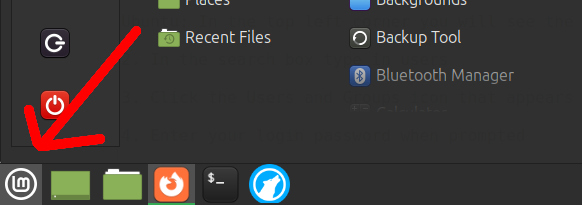
Ubuntu: In the top left corner you will see the Activities menu or a white bar icon, click it

2. In the search box type in users
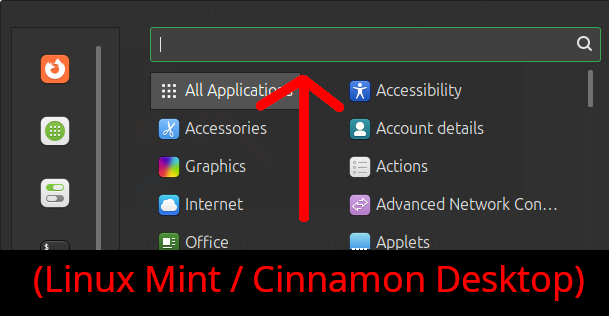
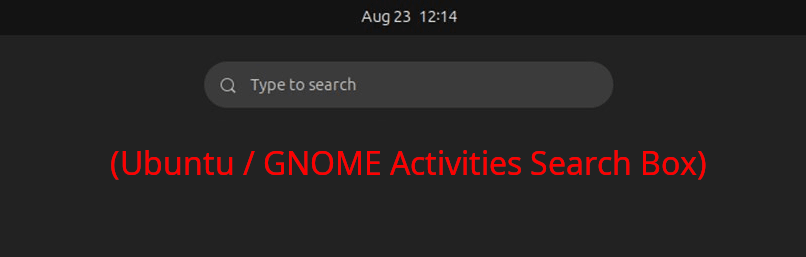
3. Click the Users and Groups icon that appears
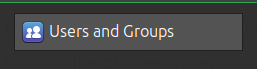
4. Enter your login password when prompted
5. Click the Add button
6. In the Account Type drop down box select Administrator
7. Enter a name in the Full Name box
8. In the Username box enter whatever username you would like to use
9. Click the Add button
10. Click on the new username under the Users tab
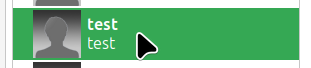
11. On the right hand side click the No password set button
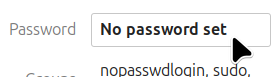
12. Enter a password you'd like to use for the login on the new account, do it twice, once in each text field
13. Click the Change button
14. Click the X button in the top right corner of the window to exit
Directions on moving the PenguinVPN folder to your new user account's home folder and adding a PenguinVPN connection under the new user account
0. If your on Ubuntu or Debian you will probably need to install the nautilus-admin package via the Software Manger, App Center, or apt-get first:
If you open a terminal you can do this via the following commands:
sudo apt-get install nautilus-admin
nautilus -q
1. Open up the Files program, click the Linux Mint menu icon in the lower left corner and search for Files, or if on Ubuntu/GNOME you can do this from the Activities menu icon in the top left corner
2. Click on the up arrow near the files menu
3. You should now be in the /home folder
4. Right click on the think user folder and select Open as Root
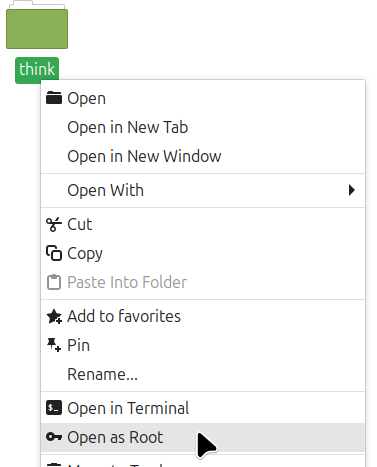
5. Enter your login password, by default this is the word 'penguin' without the quotes
You will now be able to copy and paste the PenguinVPN to the new users home folder as you have 'Elevated Privileges'
6. Scroll through the folders and find the one that says PenguinVPN and then right click on the folder, select Copy
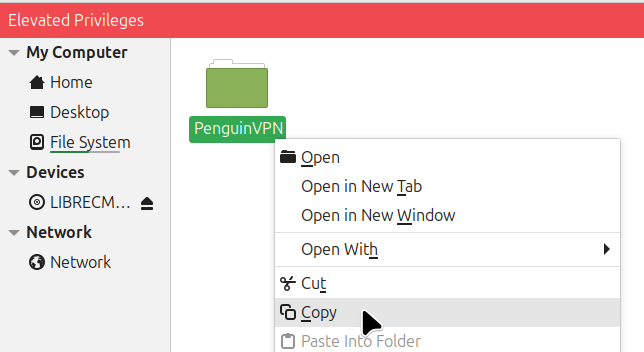
7. Click on the File System icon on the right, then double click on the home folder on the right side
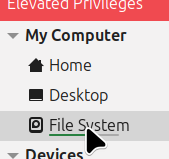
8. Double click on the new user's home folder
9. Go to the file menu and select Edit > Paste
10. Right click on the PenguinVPN folder and select Properties
11. Click on the Permissions tab
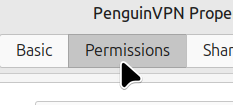
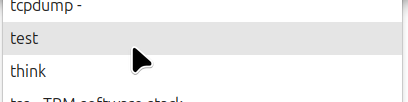
12. Under where it says Owner click the drop down and select the new user
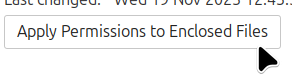
13. Click the button that says Apply Permissions to Enclosed Files
14. Click the Close button
15. Go to the Linux Mint menu icon in the lower left corner and click the Logout icon (it's the icon right above the red power button icon) or it's equivalent in Ubuntu/Debian/GNOME.
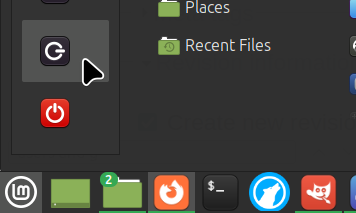
16. Click the Log Out button when prompted 'Log out of this system now?'
17. Log in using the new user account and password
18. In the lower right corner [left] click on the Network icon and go to Network Connections

19. Click the + button to add a new connection
20. In the drop down box for Choose a Connection Type select Import a saved VPN configuration...

21. Click the Create... button
22. Click on the PenguinVPN folder and then select .ovpn file (it'll probably be PenguinVPN.ovpn)
23. Click the Open button
24. Click the Save button
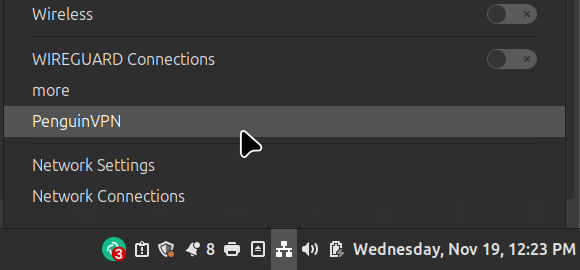
25. To connect to the PenguinVPN service go to the network applet and select your PenguinVPN connection
Direction to delete the think user account
1. First make sure you have followed the directions to create a new user account with administrative privileges first and are logged in as that new user
2. In the lower left corner click the Linux Mint menu icon, or in Ubuntu/Debian/GNOME the activities menu icon in the top left corner
3. Search for users and click the Users and Groups icon when it appears
4. Enter your login password
5. Click on the think user and then click the Delete button
6. It'll prompt to confirm 'Are you sure you want to permanently delete think and all the files associated with this user?', click the Yes button if your sure.
7. Click the X button in the top right corner of the window